
Daykept v0.2: Tags get a full upgrade — colors, multi-tag, bulk tagging
Tags in v0.1 worked. v0.2 makes them actually powerful — colors, multi-tag, bulk tagging, a dedicated tag page.
Tags launched with the app in v0.1. The initial implementation was intentionally minimal: create a tag, assign it to an entry, filter by it. Useful, but rough. v0.2 is a full rethink based on how people were actually using tags in the first few weeks after launch.
Tag colors
Each tag can now be assigned a color. When tags appear in the timeline — as small pills on each entry card — the color makes them instantly recognizable without reading the label. If you have a #Work tag in blue and a #Health tag in green, you can tell them apart at a glance while scrolling.
This sounds like a cosmetic change but it meaningfully affects how useful tags are for skimming. The faster you can read a timeline, the more valuable the organization becomes.
Multi-tag entries
In v0.1, each entry could only have one tag. v0.2 removes that limit. An entry can belong to as many tags as make sense. A single reflection that touches on work stress, sleep, and a personal relationship can be tagged with all three. When you filter by any of those tags, the entry appears.
The Tag page
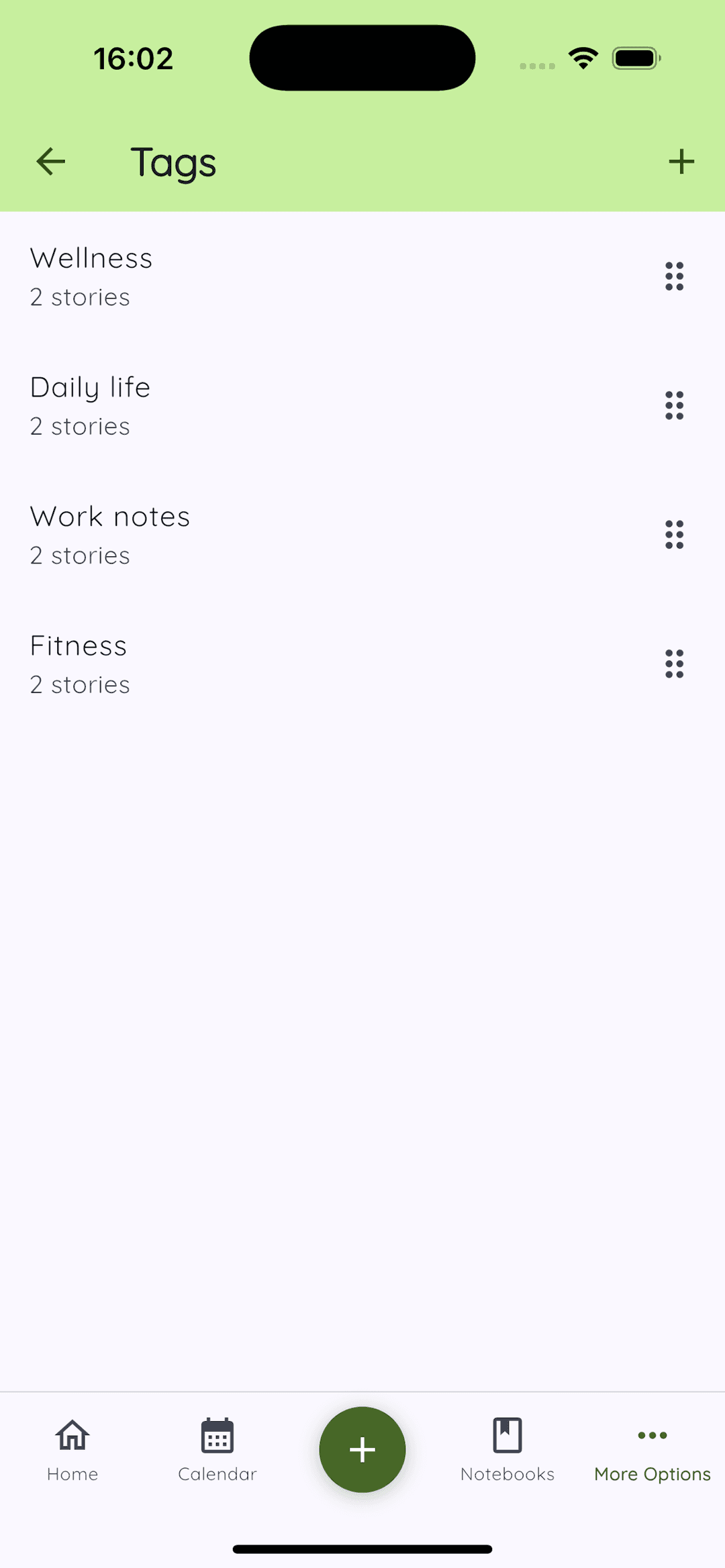
A new dedicated screen shows all your tags in one view: the tag name, its color, and a count of how many entries use it. Tap any tag to jump directly into a filtered view of all entries with that tag. This replaces the previous approach of setting a filter in the search bar.
Smart suggestions and bulk tagging
As you type a tag name while writing, the app surfaces matching tags so you do not accidentally create near-duplicates (#work and #Work and #worklog living as three separate tags is a mess that is easy to drift into).
For existing entries, there is now a bulk tagging mode: select multiple entries from the timeline and apply a tag to all of them at once. Useful when you decide after the fact to start tracking a topic you have been writing about for months.