How budgets work in Cashvelope: what's left, your daily pace, and automatic resets
Set a limit once and it resets every period. See what's left, whether you're ahead of an even pace, and how much a day keeps you on budget.
A budget in Cashvelope is a spending limit you decide in advance for one or more categories, like a cash envelope, but on your phone. You set it up once. Every period it starts again on its own, and at any moment it tells you the one number that matters: what's left.
The Budgets tab
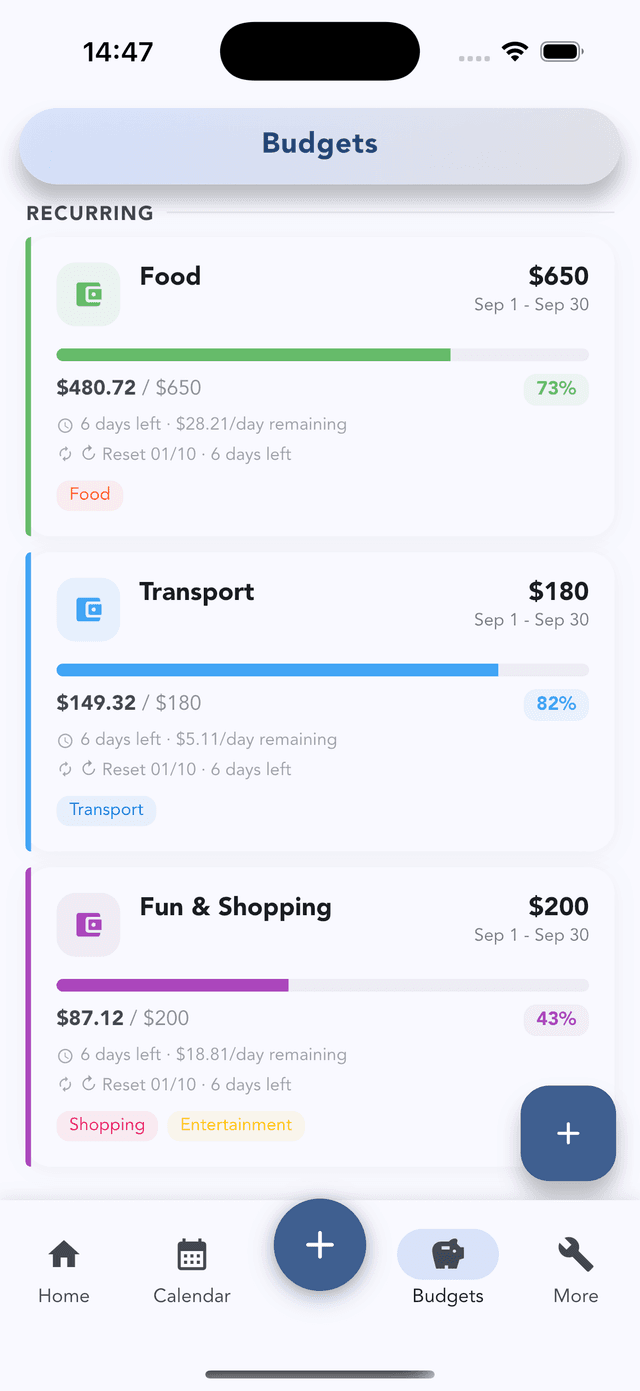
Open Budgets from the bottom bar. Each card shows what you've spent against the limit, the percentage used, how many days are left, how much a day you can still spend, and when it resets.
Create a budget
Tap the + button on the Budgets tab and choose the type:
- A regular budget counts every transaction in the categories you choose. Use it for monthly spending: food, getting around, fun money.
- A trip budget counts only the transactions you add to it. Use it for a holiday, a wedding or a move, so a one-off doesn't eat your monthly food money.
Pick the period (daily, weekly, monthly, yearly or a custom range), choose the categories and set the amount. That's it: there's nothing to recreate next month. The budget resets itself on schedule.
Not sure where to start? Cashvelope looks at your last three months and suggests categories you spend on regularly, with a limit based on your average. Tap Set budget on the suggestion.
Up to five active budgets are free. That's enough for the three to five categories where money usually leaks. More than five is Pro · free during early access.
Inside a budget: what's left, and your pace
Open a budget to see the full picture.
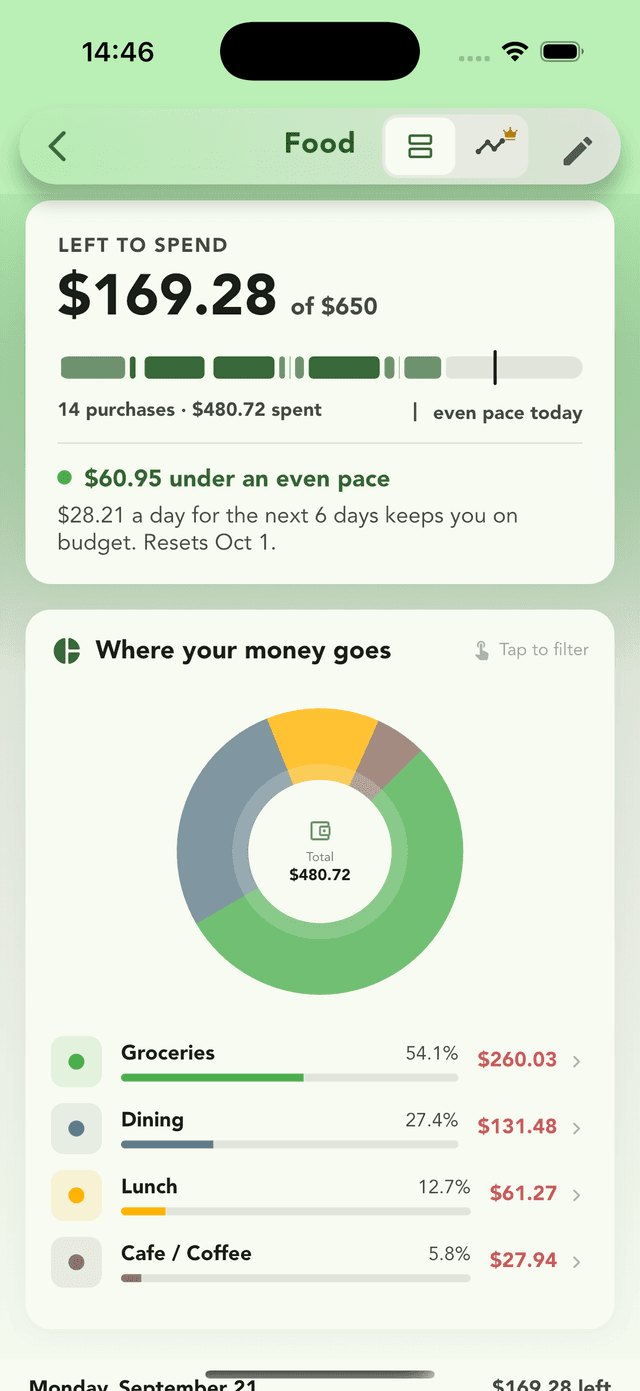
- Left to spend $X of $Y: the headline, in large type.
- Even pace today: a marker on the bar showing where you'd be if you spent the same amount every day.
- Ahead of / under an even pace: how far in front of or behind that line you are, in money.
- $X a day for the next N days keeps you on budget: the number to check at the café door.
- Resets: the date the next period starts.
The daily amount is what makes the budget usable. "$169 left" is abstract; "$28 a day for six days" is a decision you can make in the moment.
Split a budget into spending goals
A food budget can hold separate goals for groceries, dining out and coffee. Set each one as an amount or as a percentage of the budget total, so if you change the total later, the percentage goals follow.
Timeline view
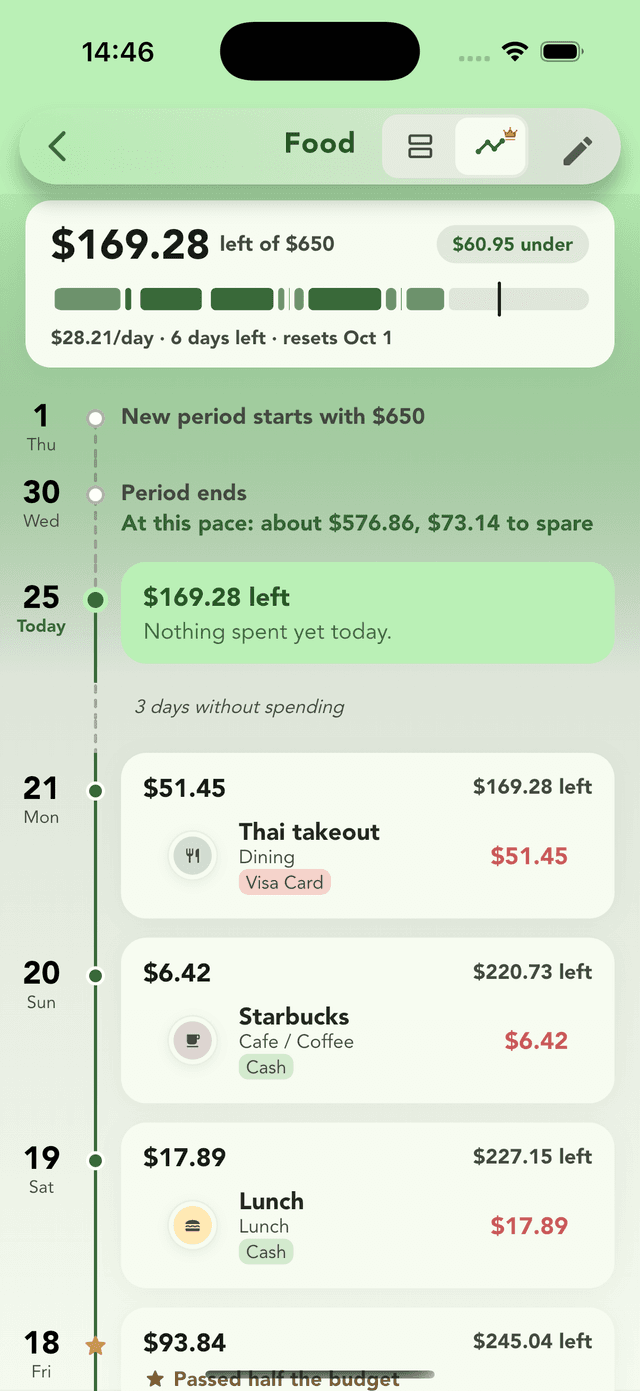
Switch a budget from List to Timeline to see it day by day: where you crossed half the budget, a running estimate like "At this pace: about $X, $Y to spare", and the streaks of days with no spending. Timeline is Pro · free during early access; the List view stays free.
When a budget goes over
Going over is information, not failure. Cashvelope shows Over budget by $X and your peak spending day. Then pick one:
- The limit was unrealistic. Raise it, but not every month. If you keep raising it, it stops working.
- It was a one-off. Note it and move on. Next period starts fresh.
- It keeps happening. Split the budget into spending goals to find which category is really leaking, and plan a lower amount somewhere else next period.
What Cashvelope doesn't do: move leftover money into next month, or split your paycheck into envelopes. Budgets are spending limits; if you had a good month, raise the next limit yourself if you want.
Make it a habit
Check the budget before you pay, not after. That's the whole method. For the thinking behind it, read digital cash envelopes. To close the month, pair your budgets with the monthly report.